
Mac computers are increasingly used in enterprise environments, but Apple Silicon models (M1, M2) often support only one native external monitor. This creates challenges for multi-screen workflows. This guide explains how DisplayLink docking stations solve this issue and helps IT managers and distributors choose the right solution for multi-monitor Mac deployments.

Understanding DisplayLink Technology
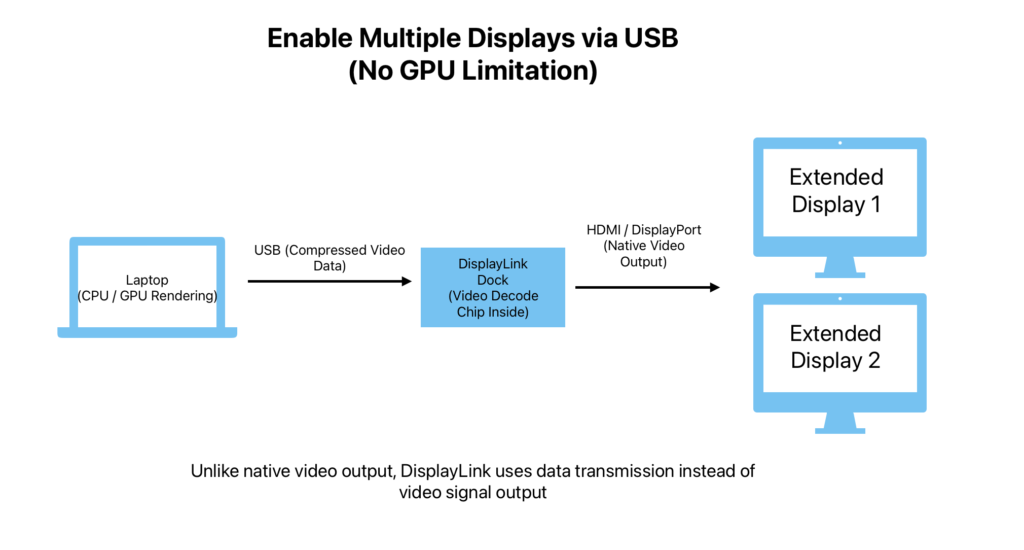
DisplayLink technology enables multiple external monitors on Mac by transmitting compressed video data over USB instead of relying on the Mac’s native graphics pipeline.
What is DisplayLink?
DisplayLink is a software-driven graphics technology that compresses video on the host device and sends it via USB to a dock with a DisplayLink chipset. The chipset converts the data into video signals, allowing additional monitors beyond the Mac’s native GPU limits.
Why Mac Users Still Need DisplayLink in 2026?
Many base Apple Silicon Macs, such as models with the M1 or M2 chip, natively support only one external monitor through the built-in graphics pipeline. This limitation can restrict productivity in professional environments that rely on multi-display setups. And DisplayLink can bypass Apple system limitations to connect multiple monitors.
| Mac Model | Native Displays | With DisplayLink |
| M1 | 1 | 2-3 |
| M2 | 1 | 2-3 |
| M3 | 2 (With the screen cover closed) | 4+ |
Key Enterprise Benefits of DisplayLink Docking Stations
DisplayLink docking stations help enterprises overcome Mac display limitations while simplifying workstation deployment. They enable multi-monitor setups without hardware upgrades and allow IT teams to standardize a single docking solution across Mac, Windows, and ChromeOS devices.
Overcoming Native Multiple Monitor Limitations
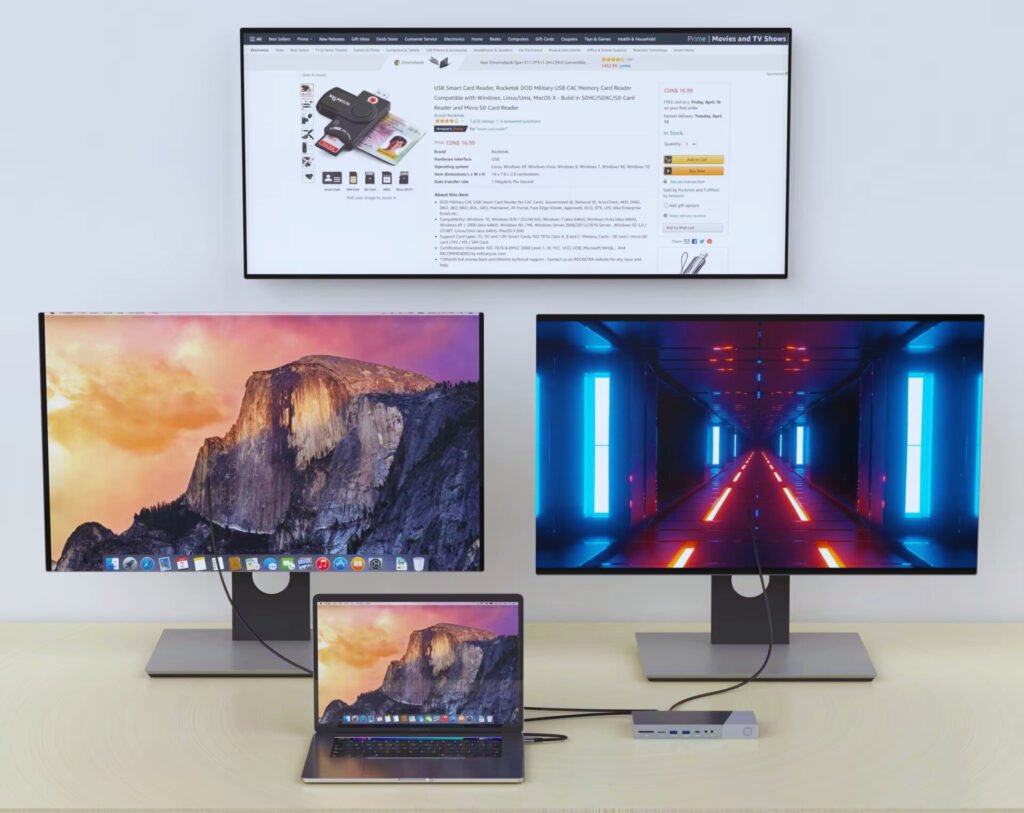
Many entry-level MacBooks support only one external monitor natively. DisplayLink docks bypass this limitation and enable dual, triple, or even quad display setups, improving productivity for professionals who rely on multi-screen workflows.
Universal Compatibility (Mac, Windows, and ChromeOS)
- Supports macOS, Windows, and ChromeOS
- Ideal for mixed-device enterprise fleets
- Enables one dock standard across multiple laptops
Facilitating Seamless Hot-Desking
- Single-cable connection to monitors and peripherals
- Consistent workstation experience across desks
- Faster setup for flexible office environments
Essential Features to Look for in a B2B DisplayLink Dock
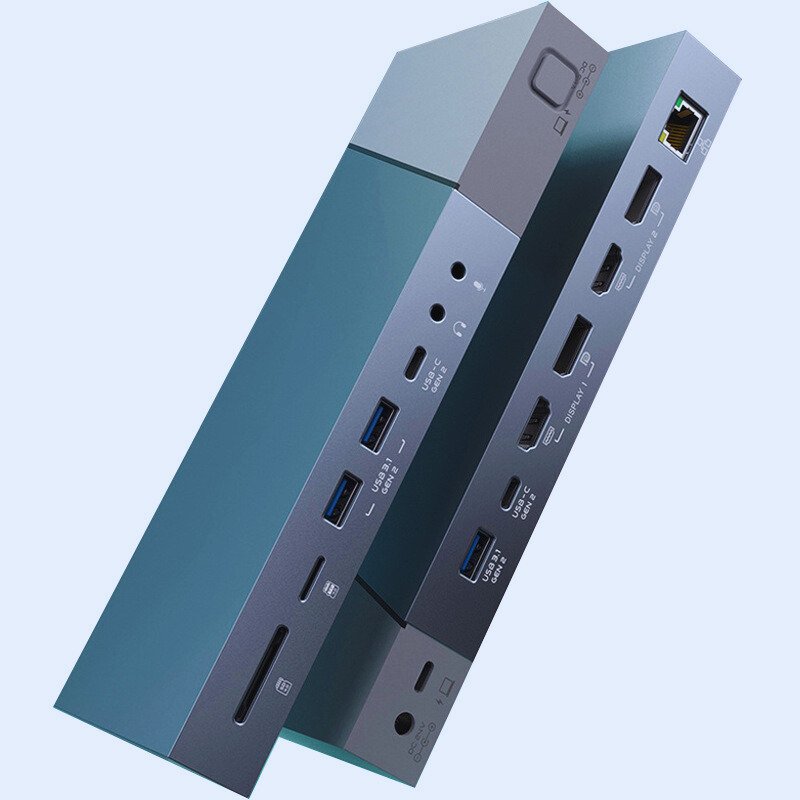
When selecting a DisplayLink dock for enterprise use, IT buyers should focus on key specifications such as display capability, power delivery, port variety, and network connectivity. These factors determine whether the dock can support modern multi-monitor workstations while remaining compatible across different laptop models.
Display Resolution and Refresh Rates (Dual 4K & Beyond)
Display performance directly affects productivity in modern workplaces. Docks supporting dual 4K@60Hz provide clearer visuals and smoother interaction, which is important for professionals working with large datasets, multiple applications, or detailed design content.
Power Delivery (PD) Capabilities
Power Delivery allows a MacBook to charge while connected to the dock through a single USB-C cable. 85W–100W PD ensures sufficient power for daily workloads while running multiple displays and peripherals, simplifying desk connectivity.
Comprehensive Port Variety (USB-C, USB-A, SD, Audio)
A wide range of ports allows the dock to support both modern and legacy office devices. USB-C, USB-A, SD card readers, and audio ports ensure compatibility with accessories, storage devices, and conferencing equipment.
Network Features
Built-in Gigabit Ethernet provides stable wired connectivity for enterprise environments. Compared with Wi-Fi, it offers more reliable bandwidth for video meetings, large file transfers, and cloud-based workflows.
How to Deploy DisplayLink Docks at Scale
For large deployments, IT teams typically standardize a single dock model and deploy DisplayLink drivers through device management tools. This ensures consistent workstation setups and simplifies management across multiple Mac devices.
Step-by-Step DisplayLink Setup on Mac
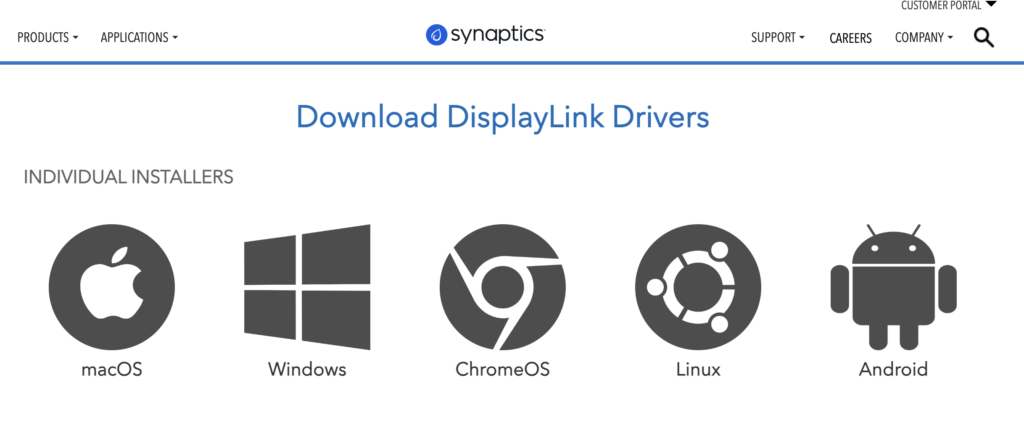
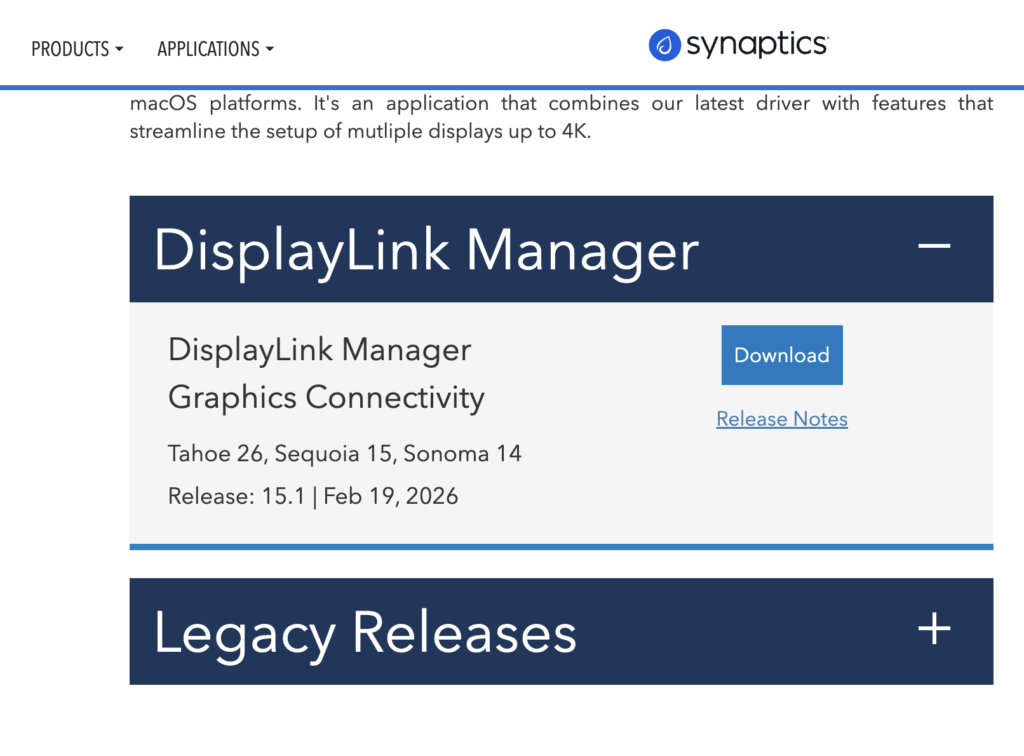
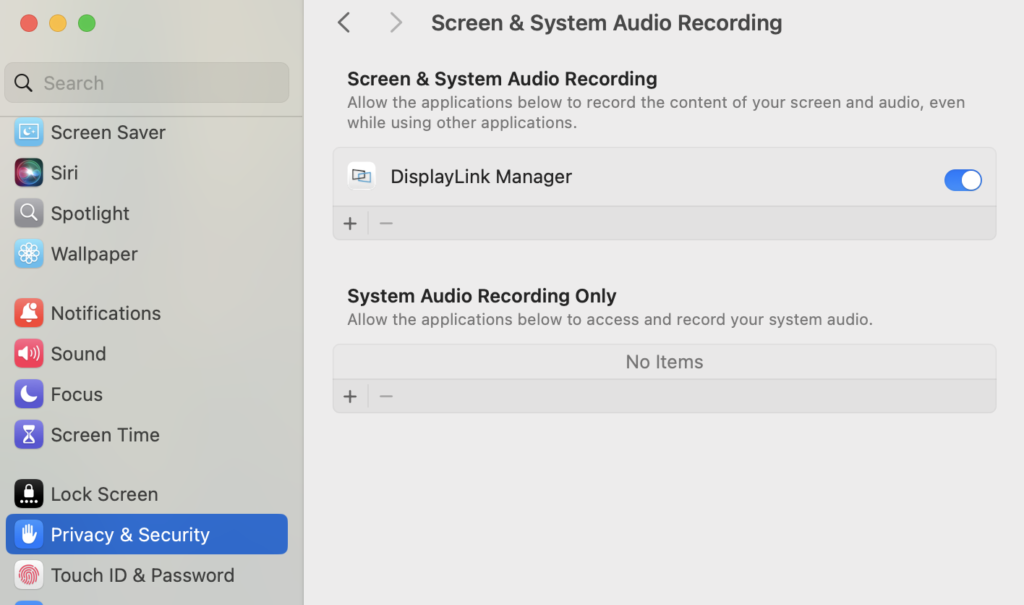
DisplayLink Manager enables additional displays on macOS. IT teams should install the manager app, grant required permissions, and keep it updated to maintain stable multi-monitor performance.
Step 1 – Install DisplayLink Manager
Step 2 – Grant Screen Recording Permission
Step 3 – Connect the Dock and Monitors
Troubleshooting Common Mac DisplayLink Issues
Most DisplayLink issues on macOS are related to driver installation, system permissions, or OS updates, rather than hardware faults. Ensuring the latest DisplayLink Manager version and correct macOS permissions helps maintain stable multi-monitor performance in enterprise environments.
Navigating macOS “Screen Recording” Permissions
macOS requires Screen Recording permission because DisplayLink captures rendered display data to transmit it over USB. This permission only enables video processing and does not record or store user activity, making it safe for enterprise use.
DisplayLink Dock Not Detecting Monitors
If external monitors are not detected, the issue is usually related to driver installation, USB connection stability, or outdated macOS versions. IT teams should verify that DisplayLink Manager is running, check cable connections, and ensure the latest drivers and system updates are installed.
Addressing Performance, Lag, or CPU Usage
Lag or high CPU usage can often be resolved by updating macOS and DisplayLink Manager. IT teams should also verify USB bandwidth and use certified cables and docking stations for stable performance.
DisplayLink vs. Thunderbolt Docks: Which is Right for Your Business?
Thunderbolt docks deliver high bandwidth and native video output, making them suitable for performance-intensive tasks such as video production or graphics workloads. DisplayLink docks, however, provide broader OS compatibility and can bypass native monitor limits on many Mac models.
DisplayLink vs Thunderbolt Dock Comparison
| Feature | DisplayLink Dock | Thunderbolt Dock |
| Monitor Support on Mac | Can bypass Mac display limits | Limited to native GPU support |
| Multi-Monitor Capability | 2–4 external displays | Usually 2 displays |
| OS Compatibility | macOS / Windows / ChromeOS | Mostly macOS / Windows |
| Bandwidth | Lower than Thunderbolt | Very high (40Gbps) |
| Best For | Office productivity, multi-monitor setups | High-performance workloads |
Frequently Asked Questions
Does DisplayLink work with Mac M1, M2, and M3?
Yes. DisplayLink works with Apple Silicon Macs including M1, M2, and newer models when the DisplayLink Manager driver is installed.
How many monitors can a DisplayLink dock support on Mac?
Most DisplayLink docks support 2 to 4 external monitors, depending on the dock chipset and resolution configuration.
Can DisplayLink support 4K monitors on Mac?
Yes. Many DisplayLink docks support dual 4K@60Hz displays, depending on USB bandwidth and dock specifications.
Does DisplayLink reduce performance on Mac?
DisplayLink uses USB-based video compression. For typical office tasks such as spreadsheets, coding, and web applications, performance remains smooth.
Do DisplayLink docks work without drivers on macOS?
No. macOS requires the DisplayLink Manager application to enable additional displays.
Conclusion: Streamlining Your Enterprise Mac Setup
As Mac adoption grows in enterprise environments, reliable multi-monitor solutions are increasingly important. DisplayLink docking stations help overcome native display limitations while supporting standardized deployments across different devices. With the right docking solution, organizations can improve productivity and simplify workstation management.
Partner with Us for Bulk Orders and Custom Solutions
Looking for a reliable DisplayLink docking station supplier? We offer bulk pricing, sample testing, and customized solutions for enterprise and distributor partners.
For enterprises planning multi-monitor Mac deployments, choosing the right docking partner is essential.